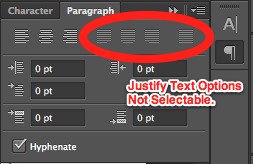
If you have ever added text to an image using the type tool in Photoshop and later decided that you wanted create a different paragraph justification style (as opposed to the available right-, center- or left-align options), you may have been frustrated to discover that the justification options in the paragraph palette were grayed out.
There are a couple of ways to make sure you have the ability to justify text in your chosen format when working with the type tool in Photoshop. I can confirm that the following directions work in Photoshop CS5 and CS6.
Option 1
- Begin the process by creating a text box.
- Do this by selecting the type tool and then click-and-drag to create text box.
- Now, the text you type in the newly-created text box can be modified as paragraph text in the paragraph palette.
Option 2
- Begin by selecting the type tool.
- Simply click on your image and start typing.
- Notice the justify options are grayed out in the paragraph palette.
- With the text layer selected, go to Type > Convert to Paragraph Text.
- You can now choose justification options in the paragraph palette.
Below is short video that walks you through the above two options.


Thank you . Concise and Helpful.
Thank you so much!
Just wanna say thank you for reminding me to use the paragraph window!